Identify and check a ROM in the browser
Use Identify to find a game's known name, region, revision, and checksums. Your file stays on your device.
Identify a file
- Open Identify.
- Add your ROM or a supported archive.
- Wait for identification to finish.
- Read the Identify and Checks drawers on the ROM card.
An archive can produce several results. Each result names its member so you can tell which ROM it describes.
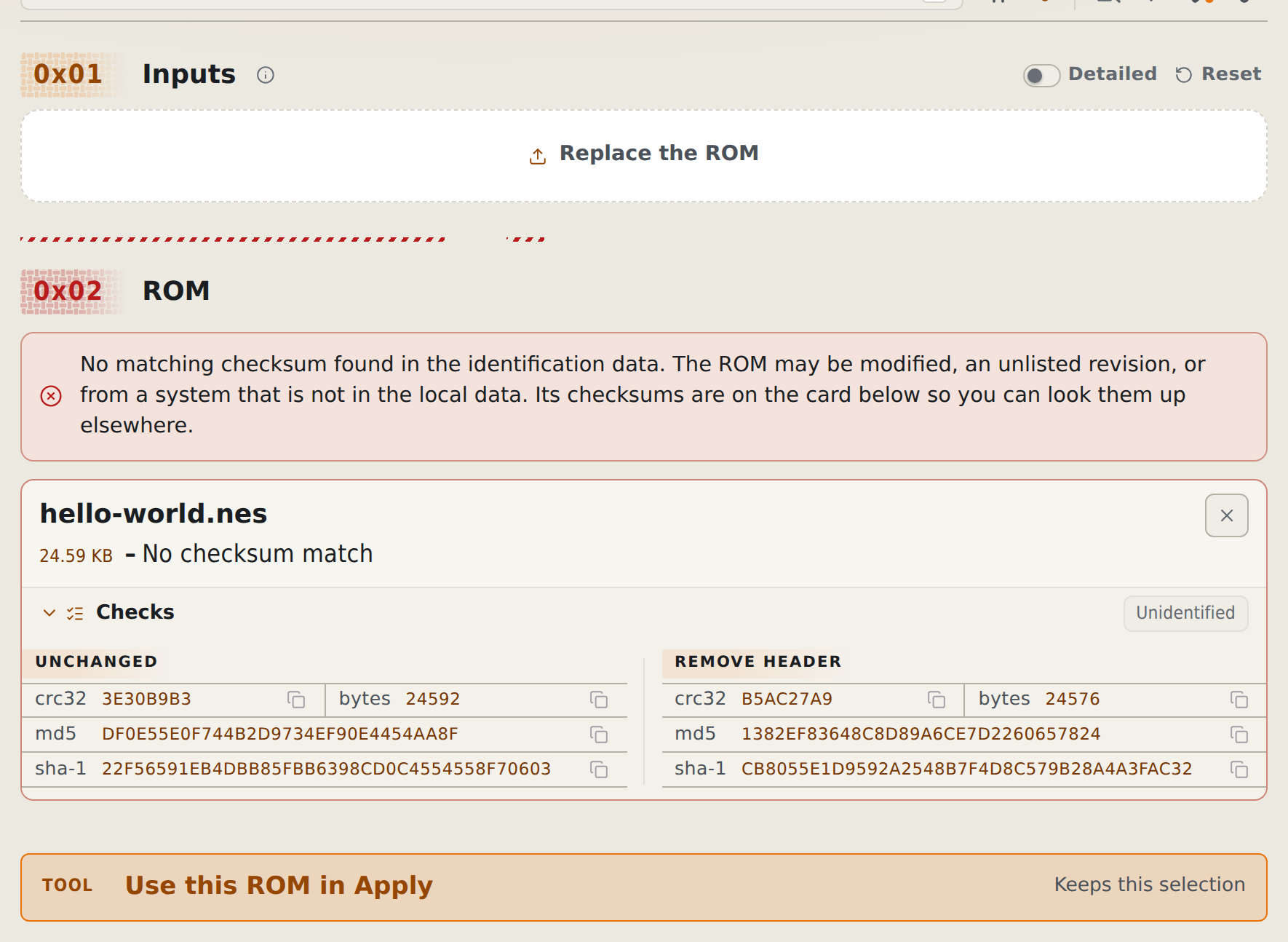
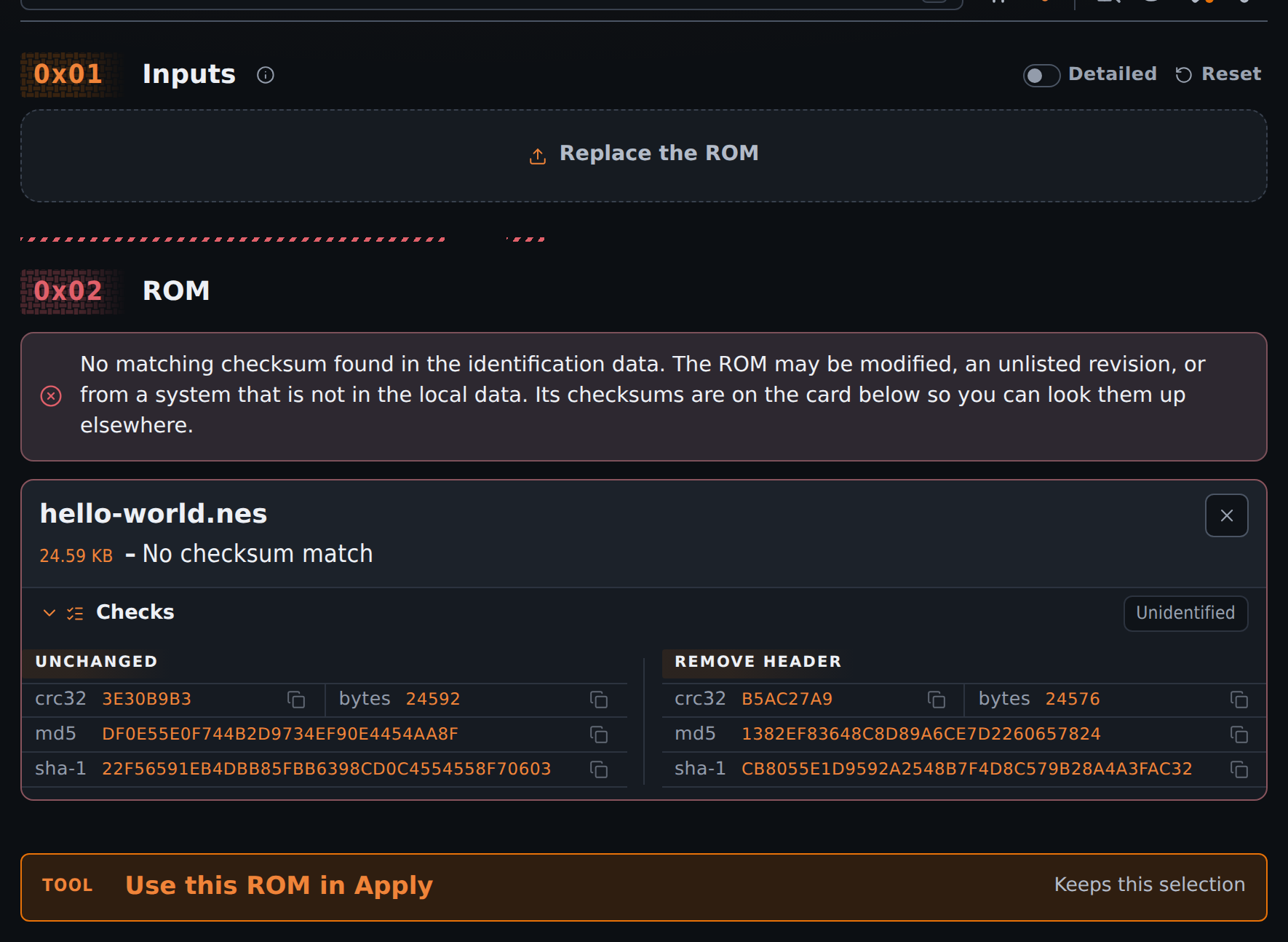
An unknown result means no matching checksum was found in the available data. It does not prove that your file is corrupt. Homebrew, modified ROMs, and unlisted releases can be unknown.
If several records share the checksums, read every candidate. If identification data could not load, check your connection and select Retry identification.
Search without a file
- Open a fresh Identify page.
- Enter a checksum or game name in Identify by checksum or game name.
- For a name search, select the game, then its release.
- Read the expected ROM's details. Add your file to compare it with that expectation.
Search finds database records. It does not download a game. A name match alone does not prove that you have the right revision.
Compare a checksum
Open Checks on the ROM card. Compare the same algorithm with the value in the patch author's notes. Select a checksum row to copy it.
For an archive, these checks describe the ROM inside it. A checksum for the ZIP itself is different.
Some cards include variants, such as a ROM without its copier header. Compare the form the author specifies. If the values differ, follow Fix a checksum error.
For SHA-256 and other algorithms, or to compare a pasted value automatically, use Checksum a ROM.
For data sources and offline requirements, see Where identify data comes from. Terminal procedures are in Identify and hash ROMs from the CLI.